Purpose: Allow an end user to securely enter their password on a computer without sharing the password with IT. By adding the user as a temporary Host to a ScreenConnect Access Session, the user can type their credentials directly while IT remains connected for setup or troubleshooting.
Scope: This process applies to:
- New computer deployments
- Computer resets (fresh OS install)
- Profile rebuilds
- Remote/WFH users
- Users located in other offices
- Any situation requiring the user to type their password while IT assists remotely
This method eliminates the need to write down, share, or temporarily disclose credentials to IT.
Step‑by‑Step Procedure
Step 1: Install ScreenConnect Access (if not already installed)
You may:
- Use an existing prebuilt ScreenConnect Access installer, or
- Build a new installer from the ScreenConnect Access page
Once installed, the computer will appear in the Access machine list.
Step 2: Locate the Computer in the Access Machine List
- Go to the Access section in ScreenConnect
- Search for the machine by computer name
- Right‑click the device
Step 3: Generate a Host Pass for the User
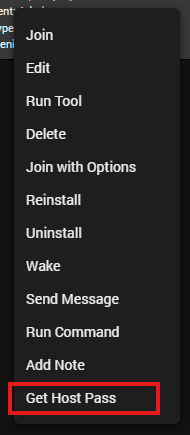
Right‑click the target computer → select Get Host Pass.
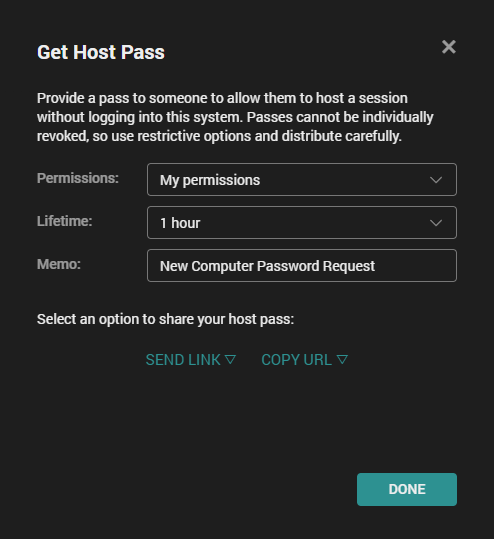
 You will see three options:
- Permissions: Controls what the user can do (Control, View Only, etc.)
- Lifetime: How long the user can access the session
- Memo: Optional note sent with the email link
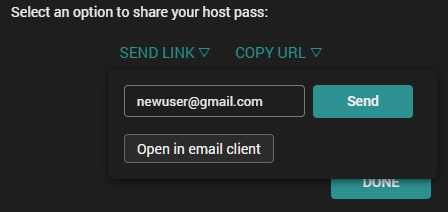
When configured, select Send Link, then enter the user’s email address.
note: This email can be sent to an external or internal email
The user will receive an email containing a link to join the session as a Host.
Step 4: User Joins the Access Session
The user clicks the link sent to their email.
They now join the session as a Host and can:
- Interact with the computer
- Enter their Windows password securely
- Complete login prompts during setup, reset, or profile creation
IT will see the screen, but cannot see the actual password being typed.
Step 5: Continue Setup or Troubleshooting
Once the user is logged in, IT can proceed with:
- New computer setup
- Post‑reset onboarding
- Rebuilding a user profile
- Software installation
- Configuration and testing
- Environment validation
The user may disconnect at any time.
Was this article helpful?
That’s Great!
Thank you for your feedback
Sorry! We couldn't be helpful
Thank you for your feedback
Feedback sent
We appreciate your effort and will try to fix the article