Purpose: To provide IT staff with a standardized process for receiving, recording, and tagging new devices, including computers (Windows and Apple), mobile devices (e.g., iPads), and Smart Docks in the inventory system.
Scope: This procedure applies to all new IT-managed devices purchased for company use and managed by the IT department.
Prerequisites: Access to EZOfficeInventory; Purchase order or invoice for reference; Printer for asset tags (generated in EZO).
Procedure:
✅ Step 1: Unboxing and Inspection - Verify contents against the purchase order. - Check for physical damage or missing accessories. - If there are discrepancies, notify Chad Krout immediately.
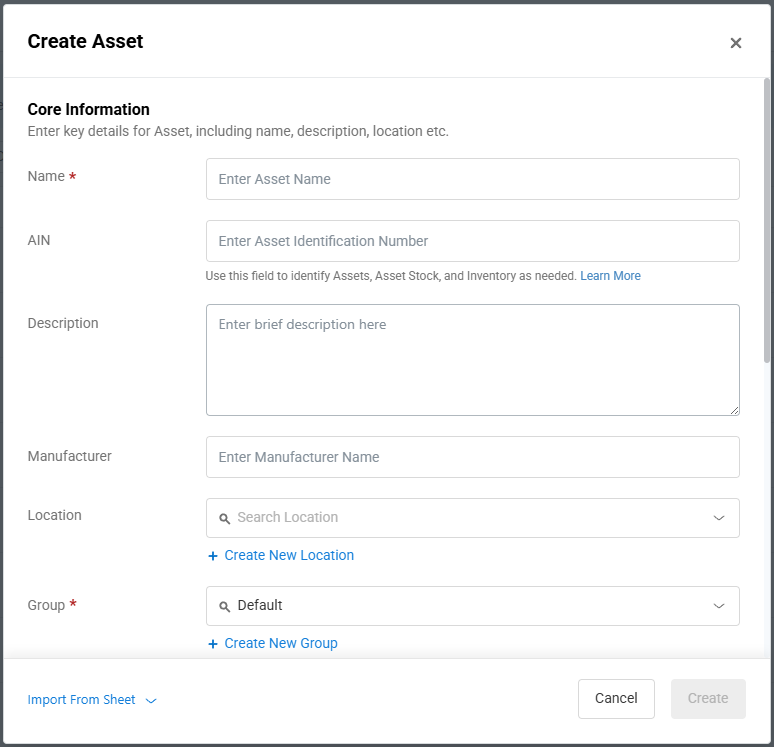
✅ Step 2: Enter Device Information into EZOfficeInventory
Populate the following fields:
- Name: Device name (e.g., Dell Latitude 5540 or Dell Pro Thunderbolt 5 Smart Dock)
- AIN: Serial Number or Service Tag
- Description: Use the appropriate template below
- Manufacturer: Device manufacturer (e.g., Dell, Apple)
- Location: Storage or assigned location
- Upload Picture: Add a photo of the device
- User: Assigned user (if applicable)
- Department: Department responsible for the asset
- Cost Price: Purchase cost
- Purchased On: Date of purchase
- Vendor: Usually the same as the manufacturer
Description Section Template:
Model: [Full Model Name]CPU: [Processor Details]RAM: [Size and Type]Storage: [Capacity and Type]GPU: [Graphics Card Details] (if applicable)Color: [Device Color] (for mobile devices)Screen Size: [Size in Inches] (for laptops/tablets)Service Tag: [Manufacturer Tag] | Express Service Code: [If available]Notes: [Any special features or configurations]
Examples:
Dell Laptop
Model: Dell Pro Max 16 - MC16250CPU: Intel Core Ultra 9RAM: 32GB DDR5 Storage: 1TB SSD G4GPU: Nvidia RTX Pro 1000 Blackwell 8GB GDDR7Service Tag: 5R2PFF4 | Express Service Code: 12521044048
iPad
Model: iPad 10th GenStorage: 256GB Color: SilverScreen Size: 10.9"Notes: Wi-Fi + Cellular
Smart Dock
Model: Dell Pro Thunderbolt 5 Smart DockModelNumber: SD25TB5Service Tag: J8PD5C4Thunderbolt/USB-C: TB5
✅ Step 3: Generate and Apply Asset Tag - After saving the record in EZO, generate and print the asset tag. - Apply the tag in a visible location: Computers: Underside or near keyboard; Mobile Devices: Back of the device; Smart Docks: Bottom or side of the dock. (How to make an asset label)
✅ Step 4: Final Steps - Store the device in the designated location or proceed to device setup for the assigned user.
Was this article helpful?
That’s Great!
Thank you for your feedback
Sorry! We couldn't be helpful
Thank you for your feedback
Feedback sent
We appreciate your effort and will try to fix the article