Optimizing System Power Settings for Enhanced Performance
Optimizing your system's power settings can significantly boost both usability and performance. Follow these steps to adjust your settings for the best results:
1. Open Control Panel
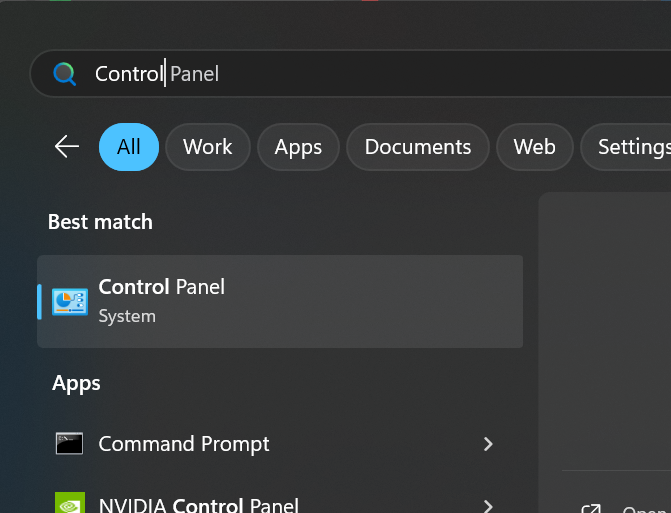
Press the "Windows Key" on your keyboard. Begin typing "Control Panel" and select it from the search results. Refer to the image below for guidance.
2. Access Power Options
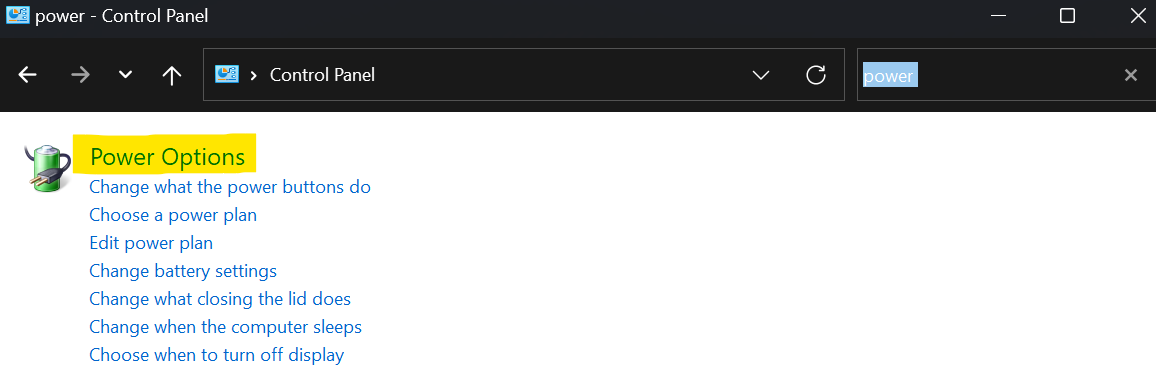
In the Control Panel window, type "Power" into the search box. Click on "Power Options" from the search results. See the image below for visual assistance.
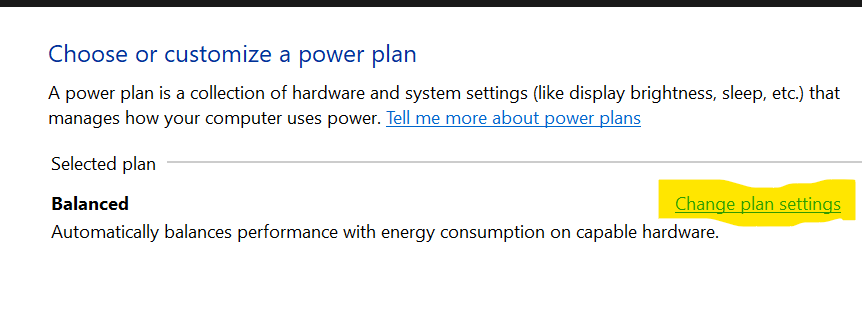
3. Adjust Plan Settings
Find and click on "Change plan settings" next to your selected power plan. Refer to the image below for a visual aid.
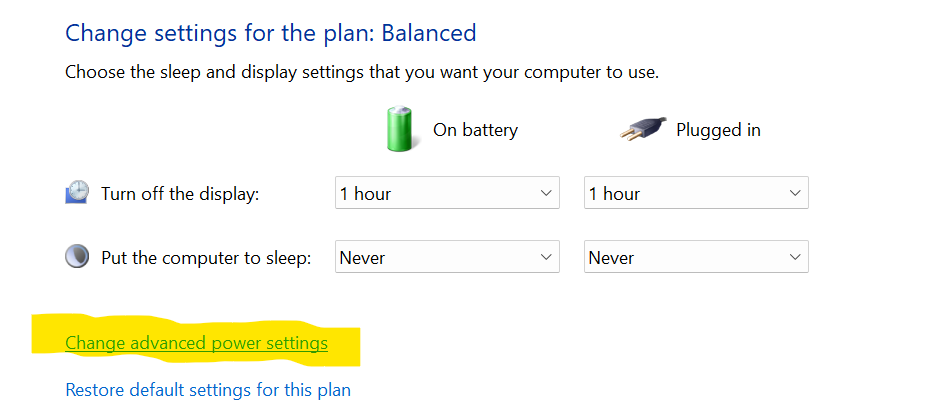
4. Modify Advanced Power Settings
Click on "Change advanced power settings" to open the advanced settings menu. Refer to the image below for the exact location.
5. Disable Sleep and Hibernation
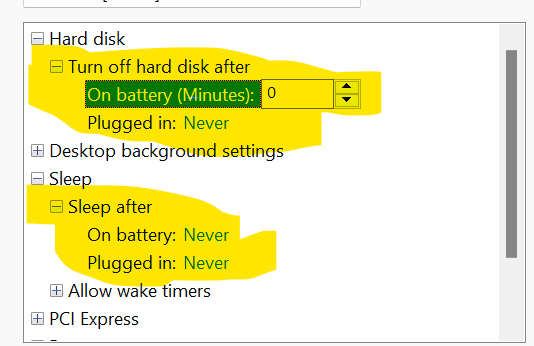
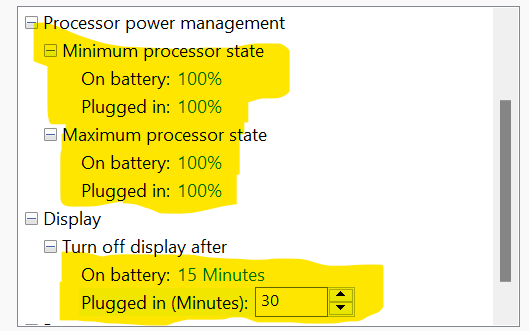
Use the image's below as a guide to find the settings for Sleep and Hibernation. These features can often lead to performance issues, so it's best to disable them.